
I’m just going to put this out there. AI isn’t here to replace great teaching. It’s here to support it. Think of AI as your teaching assistant helping you plan lessons faster, personalize learning for your students, provide meaningful feedback, and spend less time on repetitive tasks so you can spend more time teaching.
With that said, the problem is that there are hundreds of tools now, and it seems like a new one drops every week or a new update is done with the ones we already know about. It’s overwhelming, and most of them you’ll never need. So instead of a giant list, here’s a short, tested list of free ai tools I actually use in my science classroom, grouped by their purpose.

How to choose an AI tool so you don’t drown
Before the list, here’s how I decide which tools I am going to use. I like tools that are free, genuinely save me time, are easy to use, and over which I have control. That last one is really important to me. I decide what good work looks like, and AI drafts toward it. I let AI support me but put my own spin on the results.
1. ChatGPT or Claude [For the teacher to use]. These are my workhorses. I use them to draft lesson outlines, write CER prompts, generate differentiated versions of the same question, and rework an explanation three different ways for three different groups. Ask for exactly what you need and be specific about grade and reading level. At the time of this writing, I use Claude for all of my writing, graph and data table creation, and data analysis. I use chat for brainstorming and image creation.
2. NotebookLM [For teachers and students]. This one is underrated. You drop in your own sources (an article, the standards, your notes, a textbook chapter, a YouTube video), and it can create infographics, audio overviews, video overviews, slide decks, flashcards, and quizzes. That means fewer made-up facts because it’s working from your documents. I like to use it to create infographics from my one-page science readings and use the infographic during the explore phase of my science unit. notebooklm.google.com. Check out this video that goes into more detail (YouTube video about NotebookLM)
3. Brisk Teaching [For teachers to use]. Brisk is a free Chrome extension that works right on top of the pages you’re already using. Highlight an article, and it’ll generate questions, level the text, or build a quick rubric without you leaving the tab. You can also create student interactive activities through the Boost Student Activity tool. There you can use your Google Doc, podcast you created, YouTube video to turn brisk into a tutor, create pulse checks embedded throughout for students to answer, create an exit ticket, and more. Find it at briskteaching.com. I like to use it to help me give feedback on my students’ writing and to turn my short YouTube science videos into podcasts. That way, students can read about the topic with a one-page science article, watch a short video about the topic, and listen to a podcast about the topic. They take notes, and by the end of class, they have a good understanding of it. Check out this video on how I create it: (YouTube video about using brisk)
4. Diffit [For teachers to use. Diffit takes any article, topic, or even a YouTube video and turns it into leveled science readings complete with questions and vocabulary. When I find one great resource but have students reading at five different levels, this is my go-to tool. Whether a student is reading two grade levels below, at grade level, or above grade level, Diffit creates a version they can successfully access without changing the science they’re learning. You can find it at diffit.me.
5. MagicSchool [For teachers and students]. MagicSchool was built by a former teacher, and it bundles dozens of tools (rubric makers, feedback generators, accommodation suggestions) on the teacher side, plus a monitored student side where kids can use AI safely with you watching the dashboard. It’s a good first stop if you want one place to start. It’s at magicschool.ai. I use it mostly as a feedback tool for my students. I give MagicSchool my rubric and guidelines, and then my students can paste their paragraphs into MagicSchool, and it will give them positives and areas of growth. I then teach them how to have a conversation with it so that they can improve their paragraphs based on the feedback before they turn them in to me for their grade. I talk more about the process here: https://adventuresinistem.com/teaching-cer-how-to-use-ai-to-grade-faster/
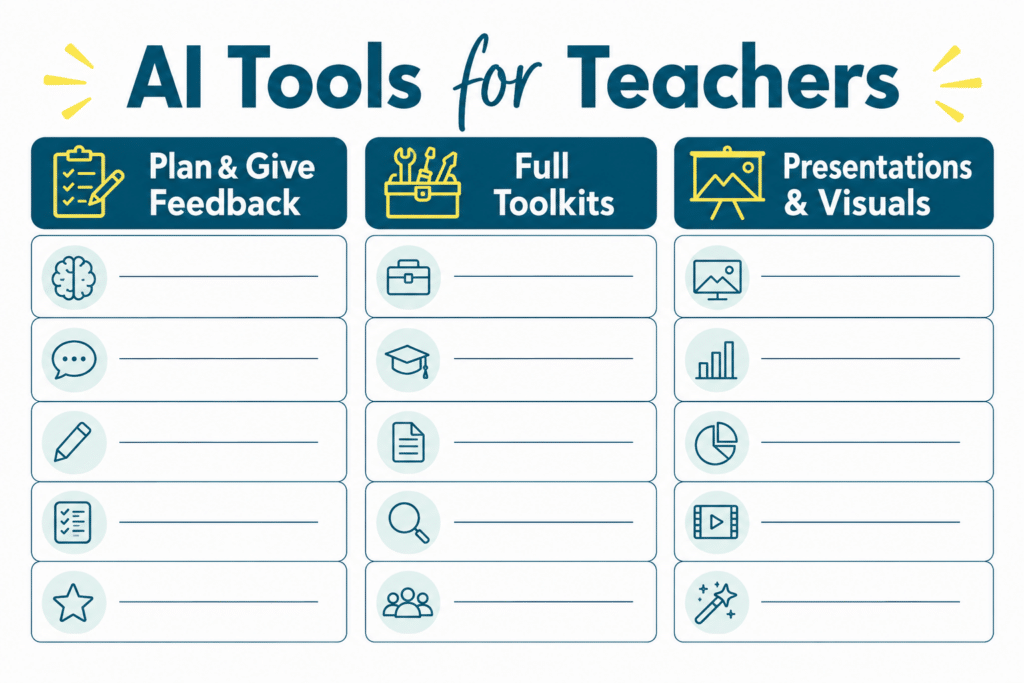
6. SchoolAI or Khanmigo [Student-facing]. Both give students an AI tutor experience with a teacher dashboard so you can see and guide what students are doing. The teacher visibility is the whole point here, because student-facing AI without oversight is a hard no for me. Look at SchoolAI and Khanmigo. I will be honest with you. I did use both of these for a year as I was deciding to use Magicschool, SchoolAI, or Khanmigo, as they are similar. At the time of this writing, I have moved solely to magicschool. My students found it easier to use, and I liked all the different tools Magicschool had compared to the others. It could just do more
7. Gamma [Presentations]. Give Gamma a topic or a rough outline, and it builds a full slide deck in minutes, formatting and all. I still edit it, but it gets me past the blank-slide problem fast. It’s at gamma.app. The free version only allows you to make 9 slides at a time. So if you want a longer presentation, you will need to chuck the information. I do like how professional and clean they are.
8. Slidesgo [Presentations]. Slidesgo has an AI deck builder plus a huge library of ready-made templates, so your slides don’t look like everyone else’s. Handy when you want something polished without the design time. It’s at slidesgo.com. This one is similar to Gamma. I’ve used both, but at the time of this writing, I prefer the ease of Gamma.
9. Curipod [Student-facing]. Curipod builds interactive lessons your students respond to live, with polls, drawings, and open responses on their own devices. It’s a great way to make a quick formative check feel like a game. It’s at curipod.com. This one is fun if you do teacher presentations. I teach using the flipped classroom model, so I have used this when I needed to give my students a quick introduction to a topic. The interactive part is what I like the best.
10. Canva Magic and AI image tools [For teachers and students]. Canva’s free education account plus its Magic tools let you generate images you can use for your slide decks or activities. It’s at canva.com. I like to use it to help my students learn how to write clearer descriptions. When they put in just a few descriptive words, they don’t get as good a result as they would when they add more details. This can be fun at the beginning of the year to have them create a self-portrait and see how close Canva can get to creating an image that looks like them.

Start with one
You don’t need to start using all ten of these tools at once. Pick the one that solves your biggest headache this week, whether that’s leveling a reading or creating a lesson you’ve been putting off. Use it for one task until it feels natural, then add another. That’s exactly how each of these tools became part of my teaching routine, one real classroom problem at a time.
If you want to watch how I actually use a few of these, check out the videos above that go into more detail.
A quick word on responsible use
Always read what AI gives you before it reaches a student, because it can be confidently wrong. Protect student data and don’t paste anything identifying into a tool that isn’t approved for your district. AI can save you time and help your students, but it doesn’t replace you as a teacher.
Want more ways to use AI to help you plan lessons? check out